
Skip to content
FUSION IoT Customer Knowledge Base

Customer Knowledge Base

Release Notes
FUSION IoT Customer Knowledge Base
Release Notes

The FUSION IoT Portal

  • Getting Started
    • Customer portal overview
    • Logging in
    • Search and filters
  • The Internet of Things
    • What is IoT?
    • IoT Glossary
  • Manage your account
    • Password management
    • Your profile page
    • Configure Dashboards
    • Manage Dashboards
  • Troubleshooting
    • Troubleshooting error messages

SIM Management

  • SIM Overview
  • View SIM Information
  • Filter SIMs
  • Export SIMs
  • Export SIM CDRs
  • SIM overview Terms

Customers

  • Customer Overview
  • View Customer Info
  • View Customer CDRs
  • View Customer EDRs
  • View Customer SIMs

User Management

  • Users
    • View Users
    • User Logs
    • User Journal
  • Roles
    • Roles introduction
    • Customer Roles Matrix

Notifications

  • Notifications Overview
  • Notification history
  • View notification details
  • Export Notification history

Journal

  • Journal Overview
  • Export Journal
  • Home
  • Home
  • Journal
  • Journal Overview
View Categories

Journal Overview

What role/s can view this? All customer roles.

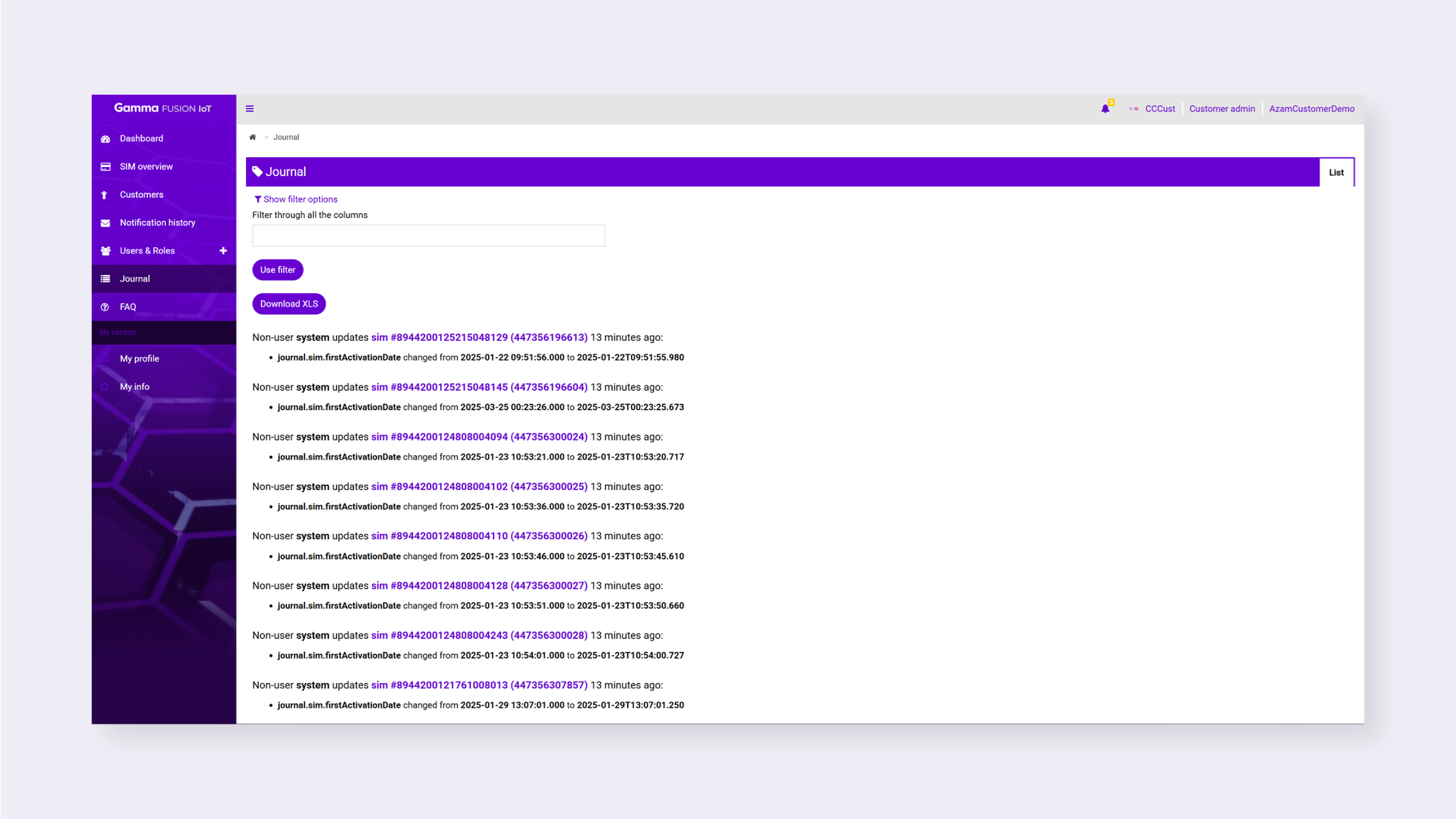
The journal is a record of all events and activities that have been performed by users on the portal. This information can be useful to review activity and ensure accounts are behaving as expected.

The journal can be viewed by selecting Journal in the menu. You can also view filtered versions of the journal in the Customer or User details areas.
Filter Journal #

You can filter the journal to view actions for a specific user or to view actions over a specific time period.

Filter by user ID #

  1. Navigate to the Journal
  2. Select Show filter options
  3. Select User ID from the Add filter dropdown
  4. Select the filter option
  5. Enter the relevant User ID
  6. Click Use filter

The journal will be filtered to show the relevant users activities and events.

Filter by event date time #

  1. Navigate to the Journal
  2. Select Show filter options
  3. Select Event date time from the Add filter dropdown
  4. Select the filter option
  5. Enter the relevant date/s and time/s
  6. Click Use filter

The journal will be filtered to show activities and events from the filtered time.

Note: See Search and Filters for definitions of the filter options (E.G. =, >, <, between).
How did you find this training?
Export Journal
Table of Contents
  • Filter Journal
    • Filter by user ID
    • Filter by event date time
We use cookies to measure performance and make improvements to this service. This includes page views, device/browser, location, and page interactions. We do not collect any information you upload to this site. By agreeing, you consent for your data to be used for this purpose.