
Customer Knowledge Base
View notification details
What role/s can do this? Customer admin
From notification history, you can to view more details about a specific notifications and trigger it to be resent if needed. Resending a notification is useful if a customer misses it or the notification fails to send.
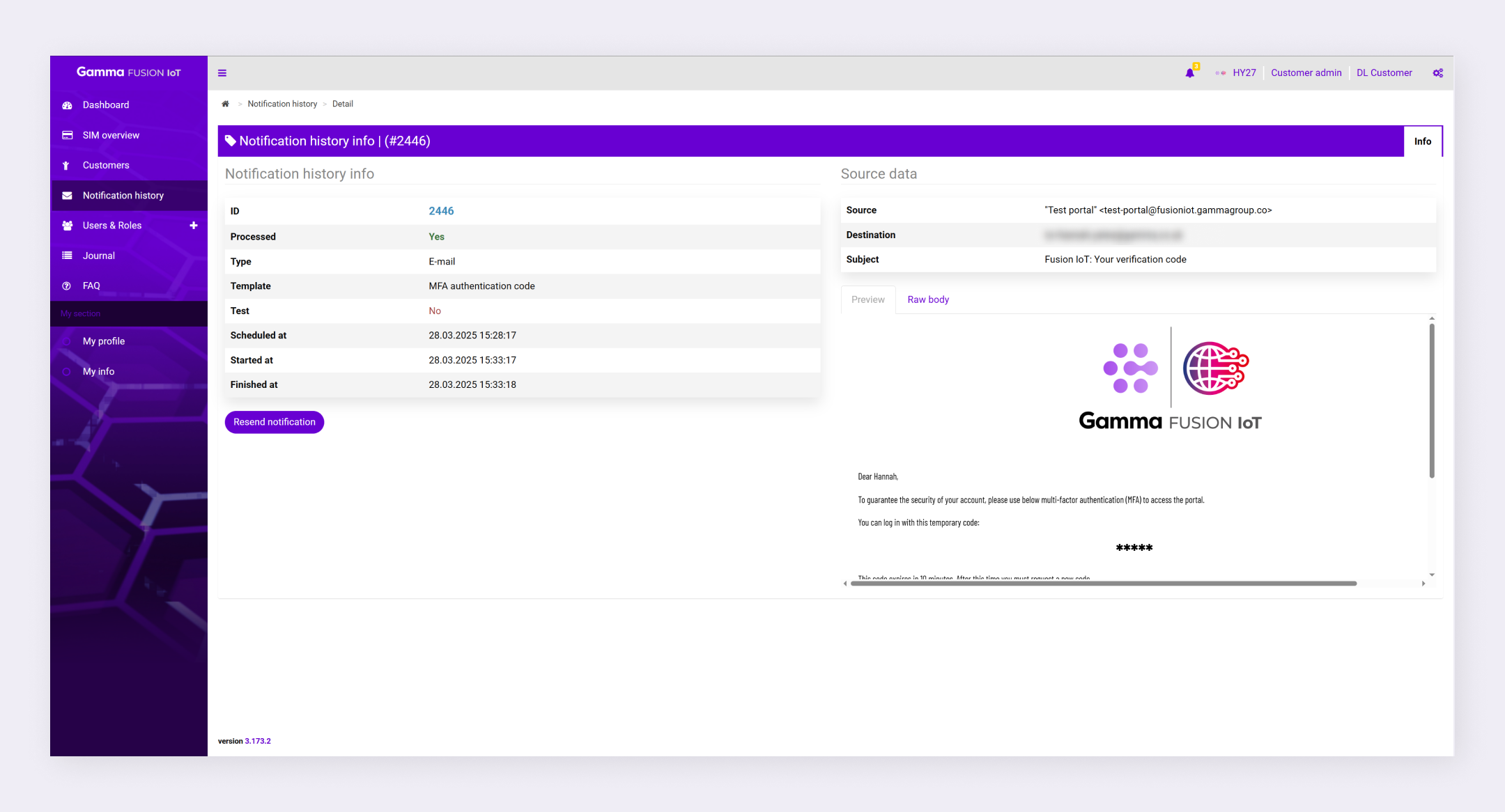
View notification details #
- Navigate to Notification history
- Locate the relevant notification
- Click Detail in the Actions column
The portal displays the notification details.
| Note: You can access notification history from a few areas of the portal. See Notification history. |
Notification details #
When you view the details of a notification, you can view information about the notification as well as the source data:
- Notification history info: The info section lists information such as the ID, the template used and when the notification was processed. This information is useful to ensure notifications are being delivered successfully.
- Source data: The source data shows where the notification came from and its destination. You can also view the notification either as a preview or as the raw body.
Resend notification #
- Navigate to notification details
- Click Resend notification
- Click Confirm
The notification is resent.